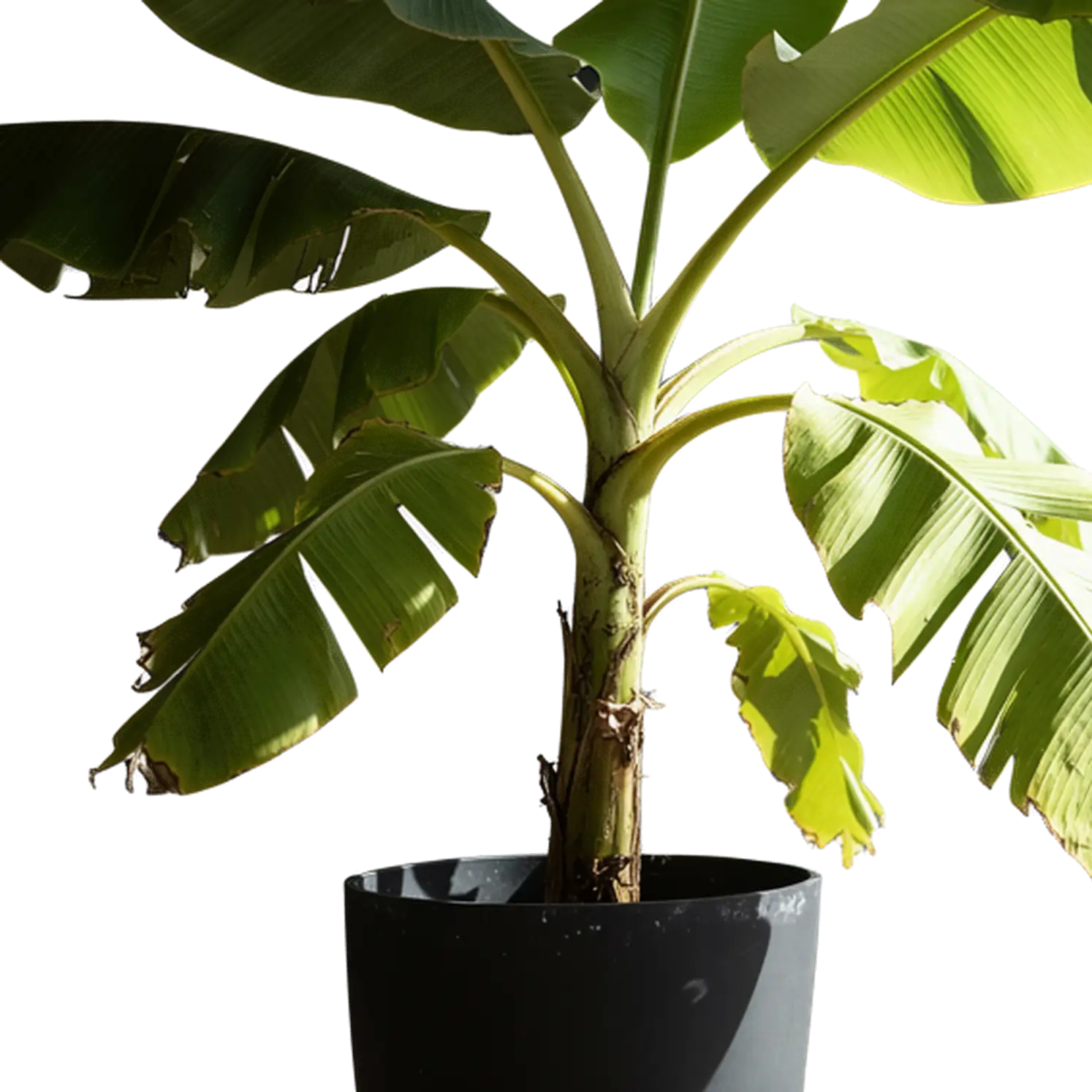
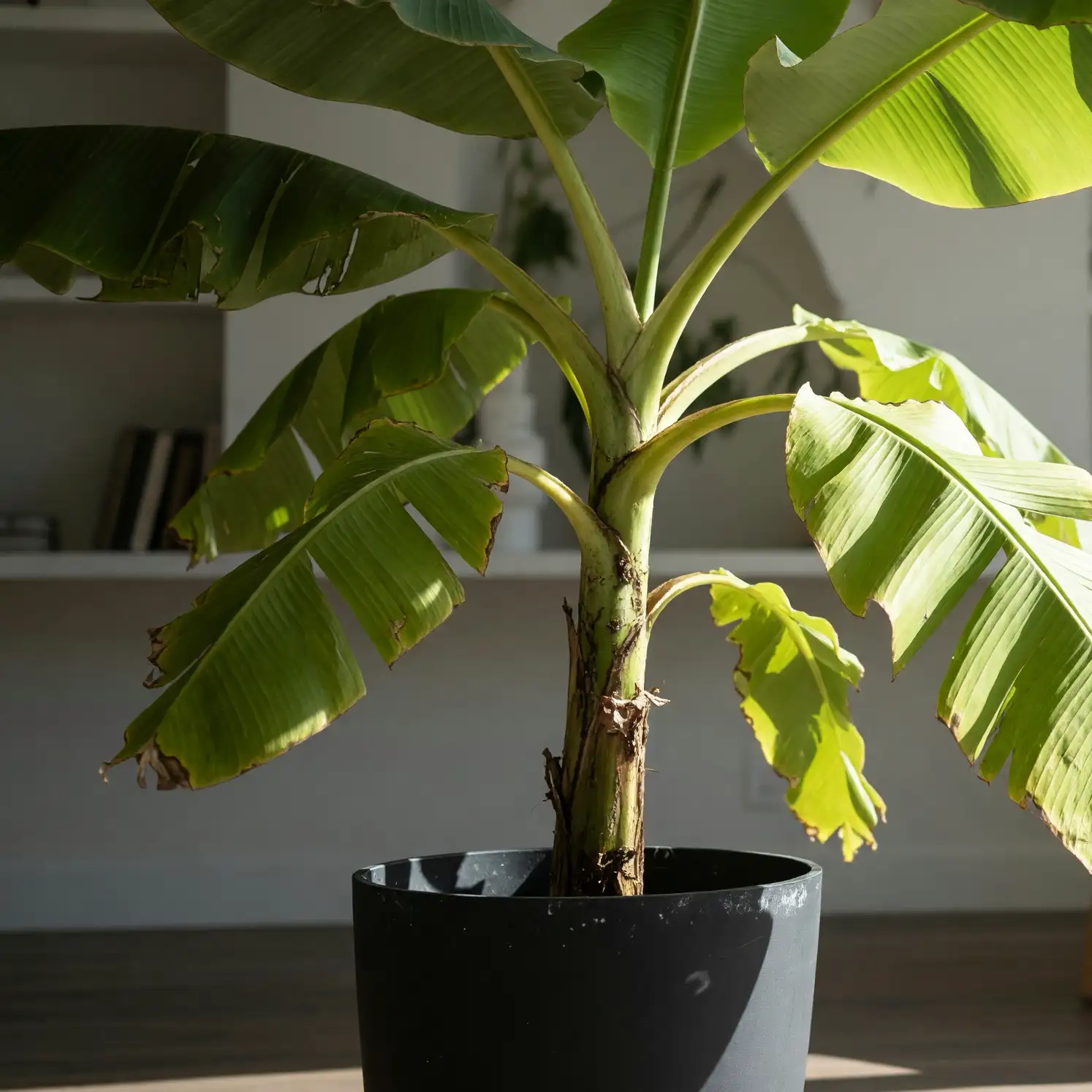
AI PNG Generator
Use our AI PNG generator to create transparent images from a text description or remake an existing picture as a new PNG. Generate stickers, icons, characters, and decorative elements to place in your designs.
Transparent PNG Generator for Design Assets
Use the AI PNG generator to create the missing element in your design, from a small icon to a full character.
Stickers and Emotes
Invent an expressive face, playful character, or illustrated object with the AI PNG generator. Add the result to messages, digital sticker collections, or posters.
Icons and Small Illustrations
Create a visual for a feature card, slide, or app screen. Give the AI PNG generator a simple, recognizable shape that reads well at small sizes.
Characters and Game Objects
Explore characters, fantasy props, or collectible objects with the AI PNG generator. Place the static artwork into game mockups and illustrated scenes.
Decorative PNG Elements
Generate flowers, ribbons, or ornaments to frame a headline or fill a corner. Match their colors and viewpoint to the artwork on your canvas.
AI PNG Generator or Background Remover?
Our transparent image generator creates new artwork. Background removal separates a subject already present in your photo.
| Method | Start with | Get | Choose it for |
|---|---|---|---|
| Create from Text | A written idea | New artwork from the AI PNG generator | An asset you have imagined but do not have yet |
| Remake Image | A reference image | A newly generated transparent version | Using an existing visual as a starting point |
| Background Remover | An existing photo | The photo subject isolated from its background | Using the subject from your original photo |
Use the AI PNG generator for new artwork, or Background Remover to isolate an existing photo subject.
How to Use the AI PNG Generator
Generate PNG images from text or begin with a reference. Choose your input, set the frame, and explore results.
Choose a Mode
Select Create from Text for a written idea, or Remake Image to begin with an uploaded picture.
Describe or Upload
Describe your subject to the AI PNG generator, or upload clear references in Remake Image. Keep the intended subject fully visible.
Set Shape and Size
Choose an aspect ratio and 1K, 2K, or 4K resolution. In text mode, also select how many results you want to explore.
Generate and Choose
Run the AI PNG generator and compare results. Choose the version whose shape, colors, and details fit your design.
Describe the PNG You Want to Create
Give the AI PNG generator a clear subject, appearance, and composition. These five details help define the asset.
Name the Subject
Name one focal object, character, or decoration. Specify the features that make it recognizable.
Choose a View or Pose
Tell the AI PNG generator which angle or pose your design needs, such as a side view or seated character.
Define the Visual Style
Choose a clear direction, such as watercolor, flat illustration, or clay, rather than combining conflicting styles.
Describe Color and Material
Specify important colors and surfaces. Matte paper, glossy ceramic, and woven fabric suggest different textures to the AI PNG generator.
Frame the Whole Asset
Leave room for feet, handles, and outer tips when you need the whole subject visible.
This AI PNG generator already produces transparent output. Describe the foreground asset; add scenery and editable text later in your design editor.
Choose the Shape and Size of Your PNG
Match the frame to the subject's silhouette, then choose a resolution in the AI PNG generator for its final placement.
Square for Compact Assets
Use a square frame for icons, emotes, and centered objects. Leave transparent space around the subject for comfortable placement inside cards or stickers.
Portrait for Tall Subjects
Give the AI PNG generator a taller frame for standing characters, plants, or vertical ornaments. Specify the complete silhouette.
Landscape for Wide Elements
Use a wide frame for ribbons, branches, or decorations that stretch across a design. Allow space around nearby text or photos.
The AI PNG generator offers 1K, 2K, and 4K. Start with 1K for small graphics or drafts; choose 2K or 4K for larger placements. Check the subject at its final size, since transparent space also counts toward the PNG's canvas dimensions.
Use Your PNG in a Design
Combine AI PNG generator artwork with your own typography, photos, and backgrounds in a design editor.
Check the Generated Asset
- Check the generated subject for the intended shape, expression, and details.
- Place the PNG over light and dark colors to inspect transparency and edges.
- View icons at their final size to check that small details remain readable.
- Compare AI PNG generator results in the same layout before choosing one.
Build the Finished Layout
Import your PNG into Canva, Photoshop, or another editor. Arrange the artwork, add text on its own layer, and adjust spacing. Keep a transparent PNG copy for reuse on different backgrounds.
AI PNG Generator FAQ
Answers about creating transparent artwork, choosing inputs, and putting your PNGs to use.
More Ways to Make Transparent Images
Pair AI PNG generator artwork with cutouts from your own photos.
Create with Our AI PNG Generator
Describe a character, object, or decoration. Generate a transparent PNG and bring that new element into your composition.
Generate PNG from Text